
Introducing Folder Monitor Relay
I built Folder Monitor Relay to streamline my workflow, and my production sky-rocketted!
In my primary use case, I use JPEGmini multiple times each day, but I no longer use Capture One Pro or Lightroom, so the available plugins don’t help. I have been opening JPEGmini and dragging my images to it to process them, and although it’s not a huge job, I generally stopped using JPEGmini. That means that my images are much larger, and when preparing images for the web, large images result in lower SEO scores. Even just for the JPEGs I store in Apple Photos to share across my various devices takes up way more room if I don’t push them through JPEGmini first.
In addition, I also add my images to Apple Photos to synch between my devices, and in any given situation, I might need to do three or four other things with my images, so I expanded my idea to creating a Control Panel that enabled me to direct not just images, but any file I send to Monitored Folders and pass them intelligently to other folders and applications. The result, is Folder Monitor Relay, or FMR for short.

Available Now on the Apple App Store

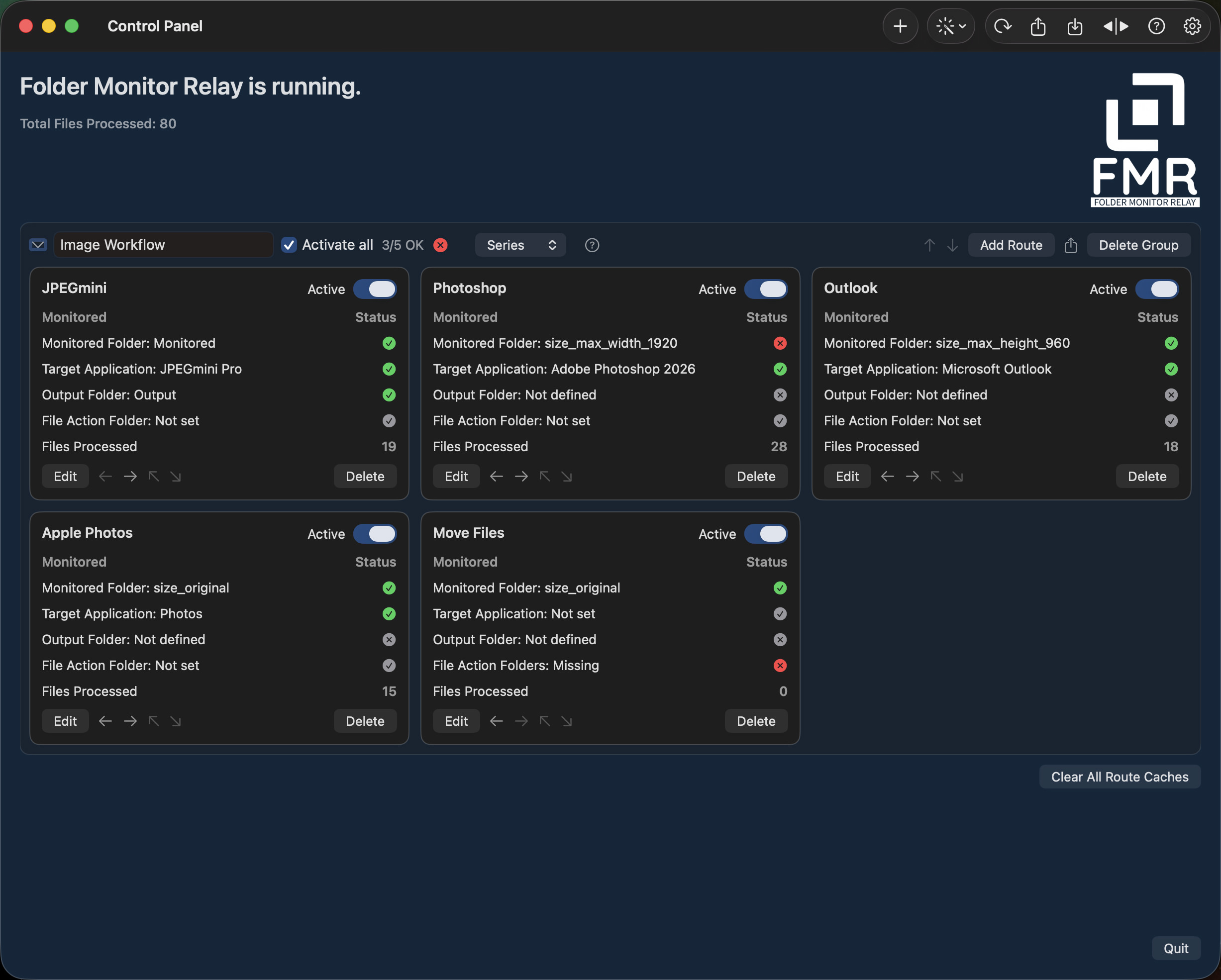
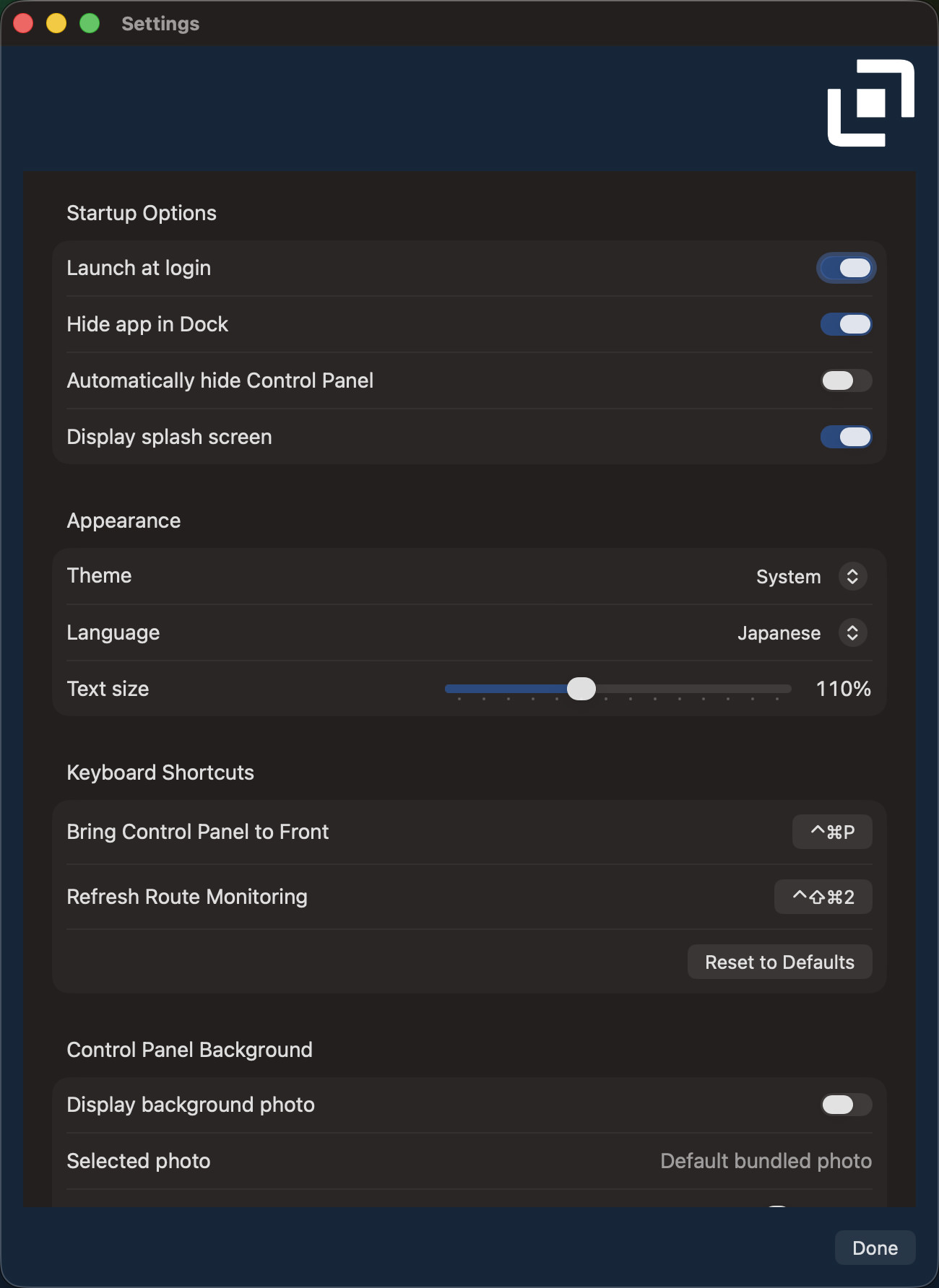
With a tiny footprint, FMR sits in the toolbar and optionally in your Dock as well, and can be brought into focus and hidden with configurable keyboard shortcuts when necessary. You can organize different Routes in Route Groups and set up different Monitored Folder’s depending on the tasks you will configure FMR to perform for you.
Control Panel
The main window of Folder Monitor Relay provides a Control Panel with status lights to show you at a glance if any of the folders you have specified are missing.
You can create multiple Route Groups to store workflows as a logical grouping of Routes (tasks), and within the group you can reorder your Routes as necessary. Each group can be set to run in parallel or in Series, although the way files are processed for performances means that some processes will kick off before previously started processes are finished if this can be done safely.
When a monitored folder contains multiple files, you will be asked how many files to expect, or to simply proceed and try to count as we go.
Route Editor
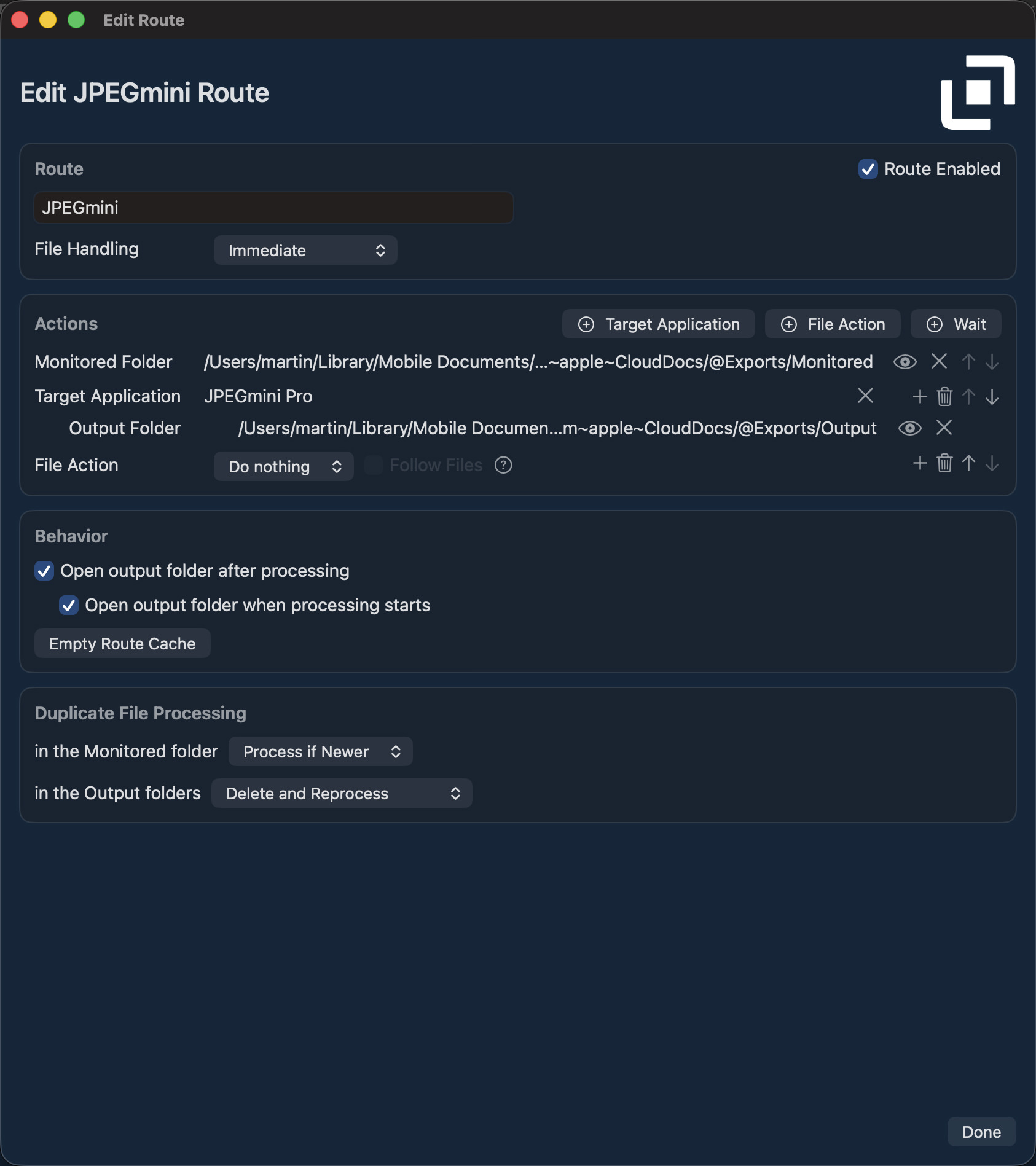
The Route is where we store your instructions for where to monitor in Folder Monitor Relay, and what to do with files when discovered.
Each Route can monitor only one folder. You can create multiple Target Applications, which is where your files will be send on discovery, and you can set an output folder to monitor if your target application provides output that you also need to monitor.
If your output is copied into multiple folders, we count the files in each folder to ensure all files are created before considering that task complete.
File Actions enable you to Copy, Move or Delete your files after processing, and you can also add a Wait to delay these actions if necessary.
The final option in the File Actions menu is Route, and this can be used to send your files to any other Route in the group. When you do this, the Monitored folder in the target/linked Route is no longer monitored, as the files passed become the source for the new task.
Duplicate Management
Sometimes, while I’m exporting images I realize something needs changing, so I export it again. Until now, that’s meant going to my export folder and deleting the previous image first, or deleting it later, then cleaning up the extra numbers in the filename of the latter exports.
If you export the same image multiple times with Folder Manager Relay, we display a dialog asking you how to proceed. You can delete the prevoius version of the new image and simply reprocess it, so you only have one clean copy, or choose to ignore the fact that it’s a duplicate and export it anyway, or simply abort the process if necessary. All options can be made the default action by turning on Always do this without asking, and if you change your mind, you can reset this in the Settings panel.
And, if you re-export a mix of new images and duplicates, we just send everything that’s new to JPEGmini so that isn’t affected by the choice you make here.

JPEGmini Setup Wizard
For the first release, we included a Route Setup Wizard to walk you through the steps to setup a Route for JPEGmini, the program that I needed to automated that became the inspiration for this application. You can launch the Wizard with the magic wand icon in the top toolbar of Folder Monitor Relay, and we will add more wizards over time, so stay tuned!
Extensive Help
There is a Help file included with example use cases and details on some of the more complicated semantics.
If Folder Monitor Relay sound like a fit for your workflow, you can get it on the Apple App Store right now. And let us know if you need anything tweaking. I made this to be a perfect fit for my needs, but I know there is more scope for improvement, so I’m all ears.
Available Now on the Apple App Store
Apple, the Apple logo, iPhone, and iPad are trademarks of Apple Inc., registered in the U.S. and other countries and regions. App Store is a service mark of Apple Inc.
If you have any questions or problems with our software, please don’t hesitate to contact us.